I wanted a timer at the edge of my screen, so I built one
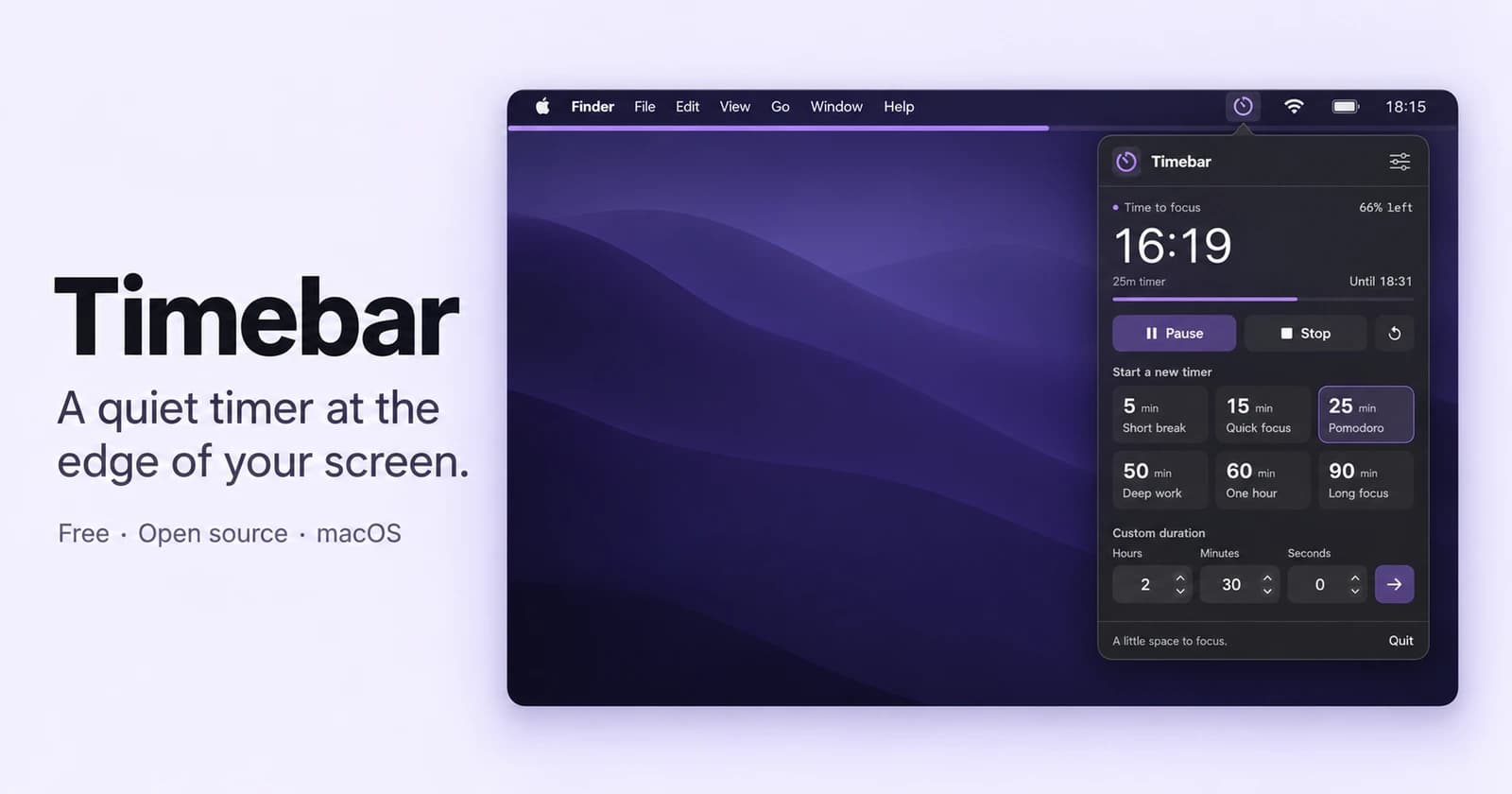
Tools and how-tosI wanted a timer that would stay in view while I worked. The shape I had in mind was specific: a very thin line just below the Mac menu bar, full when the timer starts and shorter as time passes.
It could be a 25-minute session, an hour, or any other amount of time. A glance should tell me whether I had most of it left or was nearly done. When I needed the exact time, I could click the menu icon.
That brief became Timebar, a small native Mac app. It's free, the source is on GitHub, and there is a signed, notarized download.
Download Timebar or view the source.
Why I wanted a line
A number tells me exactly how much time is left. A line gives me a rough sense of proportion without having to read anything. Half a line means half the session remains. A short line means I'm getting close to the end.
I wanted that information at the edge of the screen while the thing I was working on stayed in front of me. The right edge moves left as the timer counts down. The overlay doesn't intercept clicks or take keyboard focus, so it doesn't become another window to manage.
There are other visual timers. I wasn't trying to establish that nobody had thought of this before. I had a particular version in mind and wanted to make it work the way I wanted.
Timebar runs one timer at a time. The menu holds the controls, presets, exact remaining time, and percentage. Once a timer is running, I can close the menu and leave the line to do its job.
The details were most of the work
The first description was short. Refining the result meant being specific about things that sound almost too small to discuss.
The default line started at two points thick. I wanted it thinner, so the current default is one point, blue, at 65% opacity. There is also a half-point option. On a Retina display, that is one physical pixel. Color, opacity, and thickness are adjustable because the right level of subtlety depends on the screen and what's behind the line.
Custom durations needed attention too. I wanted to type hours, minutes, and seconds without fighting a zero that stayed in the field. I also wanted arrow controls, so setting a duration wouldn't depend entirely on typing. A label like “Custom duration” said what the controls did more clearly than the original “Your own pace.”
Those changes made the app closer to the brief. So did removing extra explanatory text from the menu. The app already had a straightforward job; the interface could be straightforward about it.
There are presets for common durations, including 25 minutes, 50 minutes, and an hour. I can pause, resume, stop, or restart a timer from the menu. At zero, the line disappears and the icon changes to a checkmark. A completion sound is optional.
A timer should be comfortable to leave running
I also asked for work on memory and CPU use. Something intended to sit quietly on the screen needs to pay attention to what it does in the background.
Timebar schedules updates around visible changes in the line instead of continuously redrawing the interface. Idle and paused timers have no scheduled ticks. The menu interface is created when opened and released when closed.
The measurements make that more concrete. In two 30-second background samples on an Apple silicon desktop running macOS 27.0, with a 1-hour-45-minute timer running and the menu closed, CPU averaged 0.033% and 0.067% of one core. Physical memory was 13.2 MiB before the first menu opening and 35.3 MiB after opening and closing it. With the timer menu visible, a 15-second sample averaged 1.332% CPU and 37.4 MiB.
Those are short samples from 2026-09-22, not permanent limits. Interface loading also produced transient lifetime memory peaks up to 273.5 MiB. I haven't measured battery drain on a laptop, so the low background CPU is evidence of efficiency, not a battery-life promise. The measurement details and reproduction command are in the repository.
The published v1.0.1 download is 1.73 MB. The app bundle contains 3.35 MB of files, including both Apple silicon and Intel binaries. Those are decimal megabytes; filesystem allocation can change the installed space used. No additional runtime or third-party packages need to be downloaded.
The countdown uses a saved deadline, which means sleep and delayed callbacks don't gradually push the end time later. A running timer keeps counting down during sleep. If I need to stop the clock, I pause it. Quitting and reopening the app preserves the timer state too.
Making the tool I had described
I used Codex to build and refine the app from the brief. My part included specifying what I wanted to see, trying the result, and asking for changes when the details felt wrong: the line's weight, the time fields, the wording, and the background resource use.
This connects to what I wrote about building a personal iPhone app. A small tool can be worth making because it solves a concrete problem for its first user. It doesn't need a large audience to justify that starting point.
For Timebar, I also wanted other people to be able to use it. That meant doing the distribution work: a Developer ID signature, Apple notarization, and a DMG with the usual Applications shortcut. A useful app shouldn't require someone to work out the build process just to try it.
Try it
Timebar is a free download for macOS 14 or later. The universal app includes Apple silicon and Intel binaries; interactive testing so far has been on Apple silicon.
Open the DMG, drag Timebar to Applications, and open it from there. Click the timer icon in the menu bar to start. The app has no Dock icon, account, analytics, or background network service. Settings and timer state stay on the Mac. The source is available under the MIT license.
If you try it during a work session, I'd like to know: is the line visible enough without becoming distracting?
If you like what you see, you'll find more stuff like this on my Twitter.
