TIL: Disable terminal sounds in Cursor
Updated 2026-11-08 for Cursor 3 and its Agents window.
Cursor now has signal sounds that play when things happen in the editor and terminal. Helpful at first, but the constant ding after a finished command can get very annoying very fast.
Here's the quick way to turn them off:
- Switch to the editor window if you're in the Agents window. Since Cursor 3, the command palette in the Agents window only shows agent commands, so the command below won't show up there.
- Open the command palette:
Cmd+Shift+P(mac) orCtrl+Shift+P(windows) - Search for "Help: List Signal Sounds"
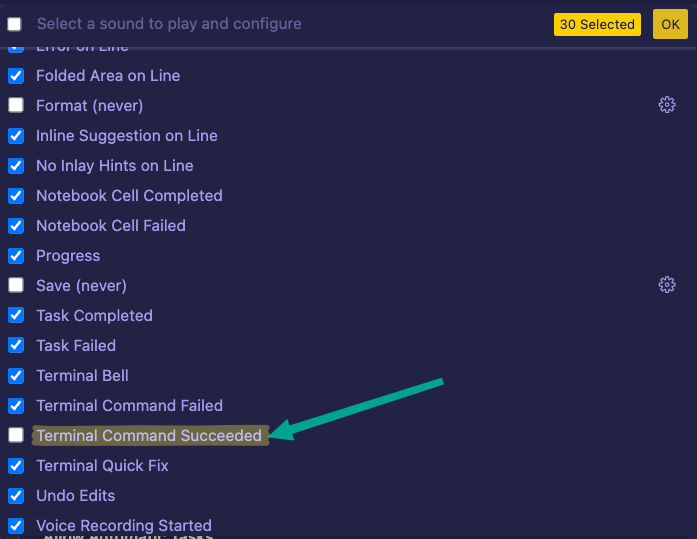
- Toggle off "Terminal Command Succeeded" (and any others you don't want, but this one is the most annoying)
There are 30+ signal sounds you can mute individually, so you can keep the ones you like and silence the rest. Enjoy the silence ✨
Prefer editing settings?
You can do the same in your settings file. Open the command palette, run "Preferences: Open User Settings (JSON)", and add this line inside the outer curly braces:
Or mute every signal sound at once:
If the sounds keep coming back, another app may be turning them on. Most signal sounds are set to auto, which means they play when Cursor thinks you're using a screen reader, and macOS can report apps like HomeRow or Wispr Flow as accessibility tools. Adding "editor.accessibilitySupport": "off" stops that. Restart Cursor after saving.
If you liked this, you'll find more on X (@velvet_shark), YouTube, or via RSS.
